

Smartphone Photography Tips
Following an extremely interesting and engaging presentation/workshop by Jeanette 'Jet' Lendon, below are list her suggestions editing your photos on your phone and some other useful information and links.
Tips and tricks mentioned on the night:
- Turning your phone upside down gives you a totally different perspective.
- Don’t forget to switch lenses (if you can) as opposed to zooming in.
- Under-expose to keep the textures and tones. This is especially important at nighttime.
- To get the top of a building, under a flower or tree for example, put the camera on to selfie mode.
- For straight lines and your Rule of Thirds, use the grid.
- For portraits use portrait mode and (iPhone) either change the F number before (top right), or afterwards (edit, then go to the F number), or on (most) Androids, change the ‘blur’ either before or afterwards (change background effect). Don’t forget Portrait only kicks in when you are a certain distance away, otherwise it’s just a normal lens.
- (iPhone) For Long Exposure shoot on ‘Live’ and keep very still for the 2 seconds the word “Live” is visible. Then go to your photo, and go to the down arrow (top left), and go to Long Exposure. If you have a Samsung, go to the Pro setting, set your ISO as low as it will go and shutter speed to 1 second. As mentioned last night, it seems you can only use this at nighttime, but you an get some amazing shots.
- For reflections, turn your phone upside down and use a puddle (don’t forget the Lego brick), glass table, or anything reflective. You can also get a vertical reflection by using a window too.
Snapseed (editing). This is the app I use to edit my photos. There are lots of other ones out there - and if you are happy with using one already, then great. If you are looking for a good - free - app for phone editing, then I can totally recommend Snapseed. I have attached some notes re what Snapseed can do which I hope will be helpful. Within Snapseed itself, there are also some short tutorials which are well worth looking at (three little dots in the top right hand corner when in Snapseed). The downside of Snapseed is the very basic cloning. If I want something a bit more precise, I use Retouch, as mentioned below.
With regard the Apps I use, these are:-
Snapseed - editing
Retouch - much better for cloning and deleting objects than Snapseed although I think it is around the £7.99 price (but worth it!!!)
Kodak Photo - mini printer app
Image size - great for resizing images (dpi, cm, mm, inches).
Logolicious - great if you want to put your logo on things - absolutely rubbish name!!!
Upscale.media - Use to upscale your images and keep the detail.
Slow shutter - Long exposure app for when I want more than the iPhone’s inbuilt 2 second ‘live’ long exposure, ICM or light painting.
CapCut - Video editing
Classic - A fun app that turns your camera into a ‘film’ camera.
Stick on mirrors - Here is the link to the I mentioned - just in case anyone wants to get creative - https://www.amazon.co.uk/gp/product/B0919XSN31/ref=ppx_yo_dt_b_asin_title_o01_s00?ie=UTF8&psc=1
These ones are quite small, but you can get bigger ones too.
Tiny people - These guys are pretty good for small people - https://northwesternmodels.co.uk/products/categories/n-gauge/people-n-gauge/ or Google ’model train set figures’ and lots come up. Lego figures work just as well too.
Videos
You may also be interested in this short article and video about how (and why) Nick Knight took his Roses from my Garden photos on his iPhone - https://flowerpowerdaily.com/nick-knight-roses-from-my-garden/ (I wouldn’t be able to do this justice talking about it, so I let Nick talk this through himself and this covers how it was achieved!!!).
This is the link to the Petapixel video about the ’Shot on iPhone’ advertising campaigns. Bearing in mind this was recorded in 2017, a lot has changed in the smartphone camera world since then!!! https://petapixel.com/2017/06/30/truth-shot-iphone-style-ads/
Lastly, if you didn’t get a clip on lens set last night (macro, wide angle and fish eye), you can get them here (£10 +P&P) https://www.jetblacksquares.com/shop/ and also the wrist straps too (£5 +P&P). Please note that, if anyone has an older phone where the camera lenses go down the middle as opposed to the side, then these aren’t suitable and they will need one with a longer ‘arm’. If you also have an exceptionally chunky case, you may need to take off when using to avoid light leaks. There are, of course, plenty of them on Amazon too. The wrist straps attach on to your phone case, and just needs a small hole along either the bottom or the side for it to slip through.
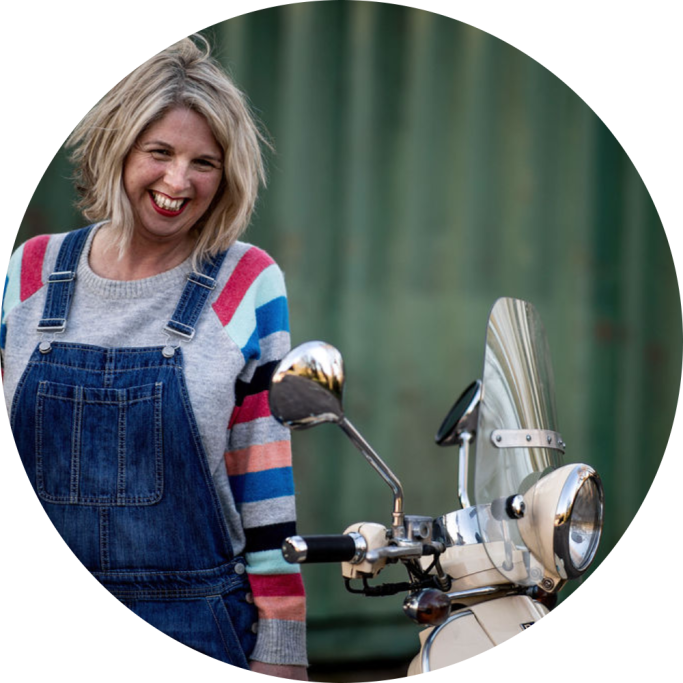

Jeanette (Jet)
Creative Director
Jet Black Squares Ltd™